Can we fix categories during import?
Review category mappings and product details before product commit. Confirming mapping can create category or tax setup earlier.
POS Migration for gift shops and specialty stores
Move a product catalog from a spreadsheet or recognized POS export into Tillr. Map columns, review rows, and verify categories, prices, stock, and barcodes after commit.

Common friction
Three problems gift shops and specialty stores run into with pos migration.
Vendor files use different column names for barcode and price.
Duplicate SKUs from the old system create confusion on the floor.
Nobody wants to discover bad data mid-holiday rush.
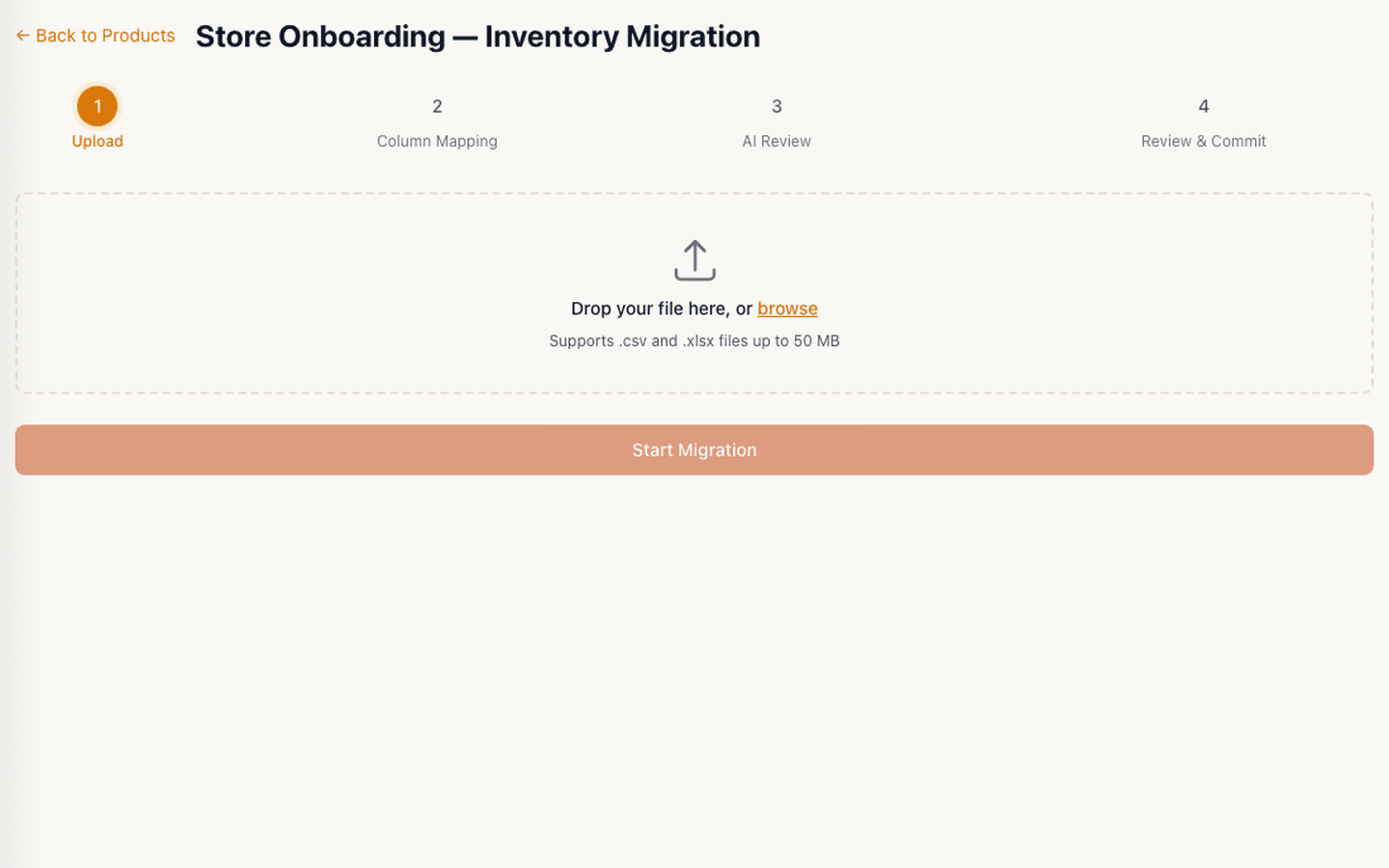
Tillr product migration upload step showing CSV and XLSX support up to 50 MB.
How it works
Plain steps your team can follow at the counter or in the dashboard.
Upload CSV or XLSX and map columns to Tillr product fields.
Review the import preview and adjust categories or names as needed.
Commit the catalog and scan a few barcodes at the counter to confirm lookup works.
Shop scenario
After importing a card and home-goods export, staff scan five random barcodes, confirm prices match the shelf tags, and flag one miscategorized item before opening.
Questions
Review category mappings and product details before product commit. Confirming mapping can create category or tax setup earlier.
Column mapping handles many layouts. Test with a sample file first to confirm fields line up.
Add a few sample products, try the feature, and decide whether it fits your shop.